
 Daily Bazar
  Electronics
  Mother, Baby & Toys
  Beauty
  Sports
  Automotive
  Stationery, Books & Music
  Computer Table
  Computer Table
  Special Weekly Offer
  Global Finds
  Quick Commerce
 _20.png) Fashion Luxe
Fashion Luxe  Jersey
  Sports Shoes
  Fashion
 _20.jpeg) Home
Home  Garden & Pet Care
  Grocery
  Daily Bazar
  Electronics
  Mother, Baby & Toys
  Beauty
  Sports
  Automotive
  Stationery, Books & Music
  Computer Table
  Computer Table
  Special Weekly Offer
  Global Finds
  Quick Commerce
 _20.png) Fashion Luxe
Fashion Luxe  Jersey
  Sports Shoes
  Fashion
 _20.jpeg) Home
Home  Garden & Pet Care
  Grocery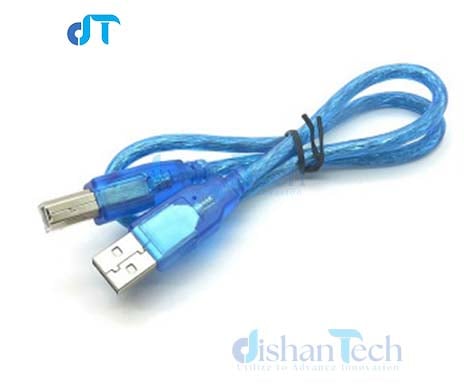
The "Arduino Sensor Shield V5.0" is an expansion board designed to simplify the process of connecting various sensors and modules to an Arduino board. It provides a convenient way to interface with a wide range of sensors and devices, making it ideal for prototyping and experimenting with different input and output components. Here are the typical features and details of the Arduino Sensor Shield V5.0:
Compatibility: The Arduino Sensor Shield V5.0 is designed to be compatible with various Arduino boards, including the Arduino UNO, Duemilanove, and similar models. It has a standard Arduino form factor, making it easy to stack on top of your Arduino board.
Pin Headers: The shield includes pin headers for connecting to your Arduino board. It stacks on top of your Arduino, connecting to the digital and analog pins.
Multiple Sensor Ports: The shield provides a variety of sensor ports and connectors, including digital, analog, I2C, and UART connectors. This allows you to easily attach a wide range of sensors and modules without the need for complicated wiring.
Labeling: Each port is typically labeled with its corresponding pin number and function, making it easy to connect sensors without referring to a pinout diagram.
Power Supply: The shield often includes a power supply section with voltage regulators and selection jumpers, allowing you to power your connected sensors and devices from the Arduino's power source or an external power supply.
LED Indicators: Some versions of the Sensor Shield come with built-in LED indicators, making it easier to monitor the status of your connected sensors.
Reset Button: A reset button on the shield allows you to easily reset your Arduino without having to physically access the Arduino board itself.
Prototyping Area: Some versions of the Sensor Shield provide a prototyping area with a grid of holes for soldering additional components or creating custom circuits.
Stackable Design: The Sensor Shield is designed to be stackable, allowing you to combine it with other shields for more complex projects.
Open-Source: Like most Arduino accessories, the Arduino Sensor Shield V5.0 is typically open-source, which means you can access its design files, modify it, and share it with the community.
To use the Arduino Sensor Shield V5.0, you would typically connect sensors and modules to the appropriate ports on the shield, and then write Arduino code to interact with these sensors through the defined pins and interfaces. The shield simplifies the process of wiring and organizing your components, making it a valuable tool for rapid prototyping and experimentation. Be sure to refer to the documentation provided by the manufacturer or supplier for specific pin mappings and usage details for your version of the shield.

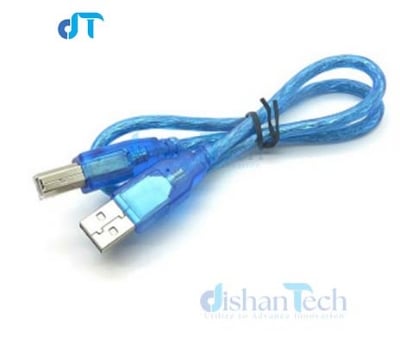
Arduino Uno Cable
The Arduino Uno typically uses a USB cable for programming and power. The most common type of USB cable used with the Arduino Uno is a USB Type-A to USB Type-B cable. Here are some details about this cable:
USB Type-A Connector: This end of the cable is the standard USB Type-A connector, which is rectangular in shape and often connects to a USB port on your computer or a USB power source.
USB Type-B Connector: The other end of the cable features a USB Type-B connector. This is a square or rectangular connector that plugs into the Arduino Uno's USB port. It's a bit more square in shape compared to the Type-A connector.
Data and Power: The USB cable serves two main functions when connected to the Arduino Uno. It provides data communication between your computer and the Arduino for programming, and it also supplies power to the Arduino Uno, allowing it to operate without the need for a separate power supply in most cases.
Length: USB cables come in various lengths, with the most common lengths being around 3 to 6 feet (about 1 to 2 meters). You can find USB cables of different lengths to suit your specific needs.
USB Standard: The Arduino Uno typically uses USB 2.0 or USB 3.0 standards, depending on the version of the board. These standards provide data transfer speeds suitable for programming the board and transferring data between the Arduino and your computer.
High-Quality Cable: It's a good idea to use a high-quality USB cable to ensure reliable data transfer and power supply to the Arduino Uno. Low-quality cables may result in communication issues or unreliable power delivery.
When connecting your Arduino Uno to your computer for programming, simply plug the USB Type-B connector into the Arduino Uno's USB port and the USB Type-A connector into an available USB port on your computer. Make sure that you have the necessary Arduino IDE and drivers installed on your computer to communicate with the board. Once connected, you can upload your Arduino sketches (programs) to the board and monitor serial output using the Arduino IDE.

Login to ask a question
